Select Language
How to get your web shop ready for Christmas
Guide

How to get your web shop ready for Christmas

Christmas is the time of year your web shop often sells the most, and the month it is easiest to lose sales. Here are four things you can set up in eRedaktør in an afternoon: a Christmas campaign, free shipping, alerts when an item is back in stock, and your products on Google and price comparison sites.

Four common reasons Christmas sales slip away

Customers compare prices across shops, they leave the basket when shipping appears at checkout, and they disappear for good when the item they wanted is sold out. And great offers do little good if nobody finds your shop when they search.

The good news: you can do something about all of this yourself, without entering new prices on every single product. Here are four steps.

1. Create a Christmas campaign that runs itself

With discount rules you set the discount on a whole category, selected products or the entire shop, instead of changing the price of each product. The rule starts and stops on its own on the dates you choose.

  1. Go to Marketing → Discount rules and click New discount rule.
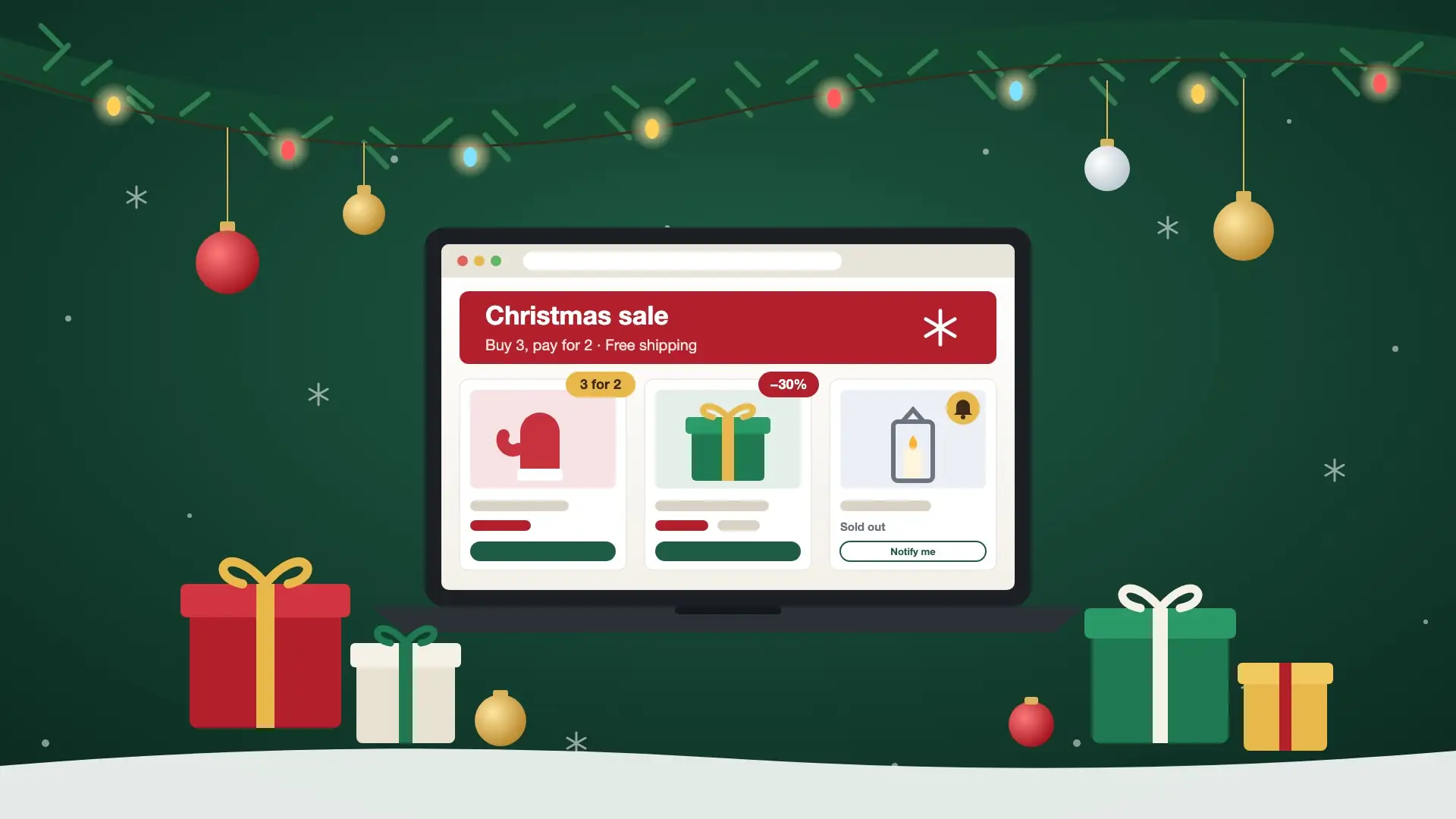
  2. Choose a type: Percent off (for example 30% off all decorations) or Buy X, pay for Y (for example 3 for 2 on mittens and socks).
  3. Choose who it applies to. Everyone suits a regular campaign. You can also pick a customer group, such as members or dealers.
  4. Choose what it applies to: the whole shop, one or more categories, or single products. You can also leave products out, for example items that are already cheap.
  5. Set a start and end date, and write a label like "Christmas sale". It shows as a badge on the product, with the old price struck through.
  6. Use Test a price to check what a product costs with the rule before you save.

Discounts are never stacked. The customer always gets the best discount, so you don't have to worry about a member discount and a campaign adding up to 60%. With 3 for 2, the basket also tells the customer how many more items they need to get the next one free.

Tip: After Christmas, the Discount report shows how much each campaign sold and how much discount it gave.

2. Take the shipping shock out of checkout

Shipping costs are one of the most common reasons people abandon their basket. You have two ways to deal with it:

  • Free shipping above an amount. Set the limit under Shop → Shipping. Pick an amount a little above a typical order, and customers will often add a bit more to reach it.
  • A coupon with free shipping. Go to Marketing → Coupons, create a code like XMASSHIPPING and tick free shipping. You can set a minimum order amount and limit the code to certain products under Valid for products. Share the code in your newsletter and on social media.

3. Don't lose the customer when an item sells out

The most popular Christmas gift is usually the first to run out. Instead of the customer going to a competitor, they can ask to be told when it is back.

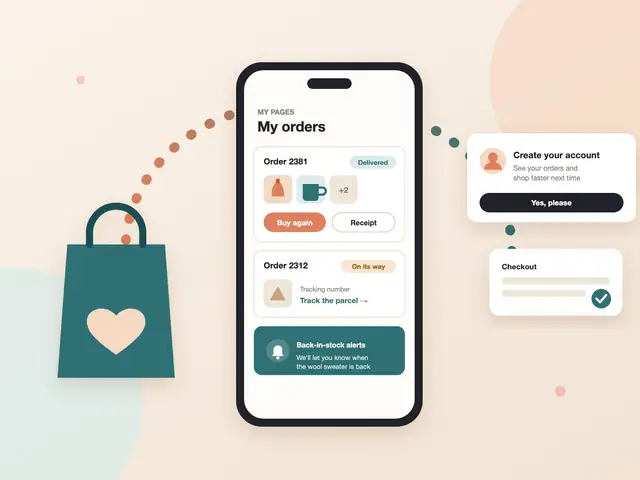
  1. Go to Shop → Settings and turn on Let visitors ask to be told when a sold-out product is back in stock.
  2. On sold-out products, and on sold-out sizes and colours, the customer now sees the button Notify me when it is back in stock. If they are signed in, one click is enough. Otherwise they enter their email address.
  3. When you restock, eRedaktør sends one email with a link straight to the product. You don't have to do anything.

You can see how many people are waiting for each item in the product editor, and in the product list you can filter on Waiting for back-in-stock alerts. It's a good hint about what to order more of. You can change the email text under Automation, in the Back in stock template.

4. Be found where customers are looking

Many people start their Christmas shopping on Google Shopping, on price comparison sites, or on Facebook and Instagram. With a product feed you send all your products there, with price, image, stock status and link, and they stay up to date on their own.

  1. Go to Shop → Settings → Product feeds and turn the feed on.
  2. Click Copy to copy the feed's address.
  3. Paste the address into Google Merchant Center, Meta Commerce Manager (for Facebook and Instagram) or the price comparison service you use, such as Prisjakt or PriceRunner.

The feed is rebuilt every night, and half an hour after you change a product. If you change your campaign prices, you can click Build now. Campaign prices from your discount rules are included, so the price on Google matches the price in your shop. Discounts that only apply to members or dealers are left out.

On the same page you can see which products were left out, and why, for example because they are missing an image or a brand. It makes a handy checklist before the Christmas rush.

A short checklist before 1 December

  • A discount rule for the Christmas campaign, with dates and a label
  • Free shipping above an amount, or a shipping coupon to share
  • Back-in-stock alerts are turned on
  • The product feed is sent to Google and price comparison sites, with no products left out that you want included
  • Your best sellers have enough in stock, and you have checked what customers are waiting for

Need a hand?

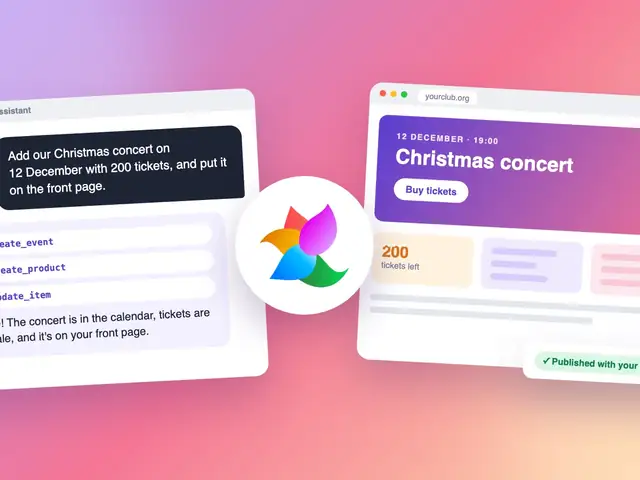
If you use the AI assistant, it can do much of this for you. Try for example "Create a 3 for 2 campaign on the Mittens category from 1 to 24 December with the label Christmas sale". If you have questions about the setup, get in touch with us, and we'll help you get ready for Christmas.
Rejoining the server...

Rejoin failed... trying again in seconds.

Failed to rejoin.
Please retry or reload the page.

The session has been paused by the server.

Failed to resume the session.
Please retry or reload the page.